AWS Cloud Operations Blog
Share Systems Manager documents across your AWS Organization with AWS RAM
Introduction
If you operate AWS Systems Manager (SSM) documents, such as Automation runbooks and Run Command documents, across an AWS Organization, you must decide which accounts can run them. Until now, that meant sharing each document with a list of individual account IDs through the ModifyDocumentPermission API, which accepts up to 1,000 account IDs per document (20 per call). Every time you provisioned a new account or restructured an organizational unit (OU), someone had to update that list by hand. As your account footprint grows, so does the maintenance work.
AWS Systems Manager now supports sharing SSM documents with your entire organization or specific OUs through AWS Resource Access Manager (AWS RAM). You create a resource share, add your documents, and select the organization or OUs to share with. As accounts join or leave, sharing stays in sync automatically. You manage access by organizational structure instead of by account ID, and you no longer maintain per-account sharing lists.
The following table summarizes what changes with this launch:
| Aspect | Before (account-ID sharing) | After (AWS RAM-based sharing) |
| Share target | Individual account IDs | Organization, OUs, or individual accounts |
| Account limit | 1,000 per document | Up to 5,000 principals per resource share |
| Membership changes | Manual update required | Automatic sync with org/OU membership |
| External sharing | No invitation flow | AWS RAM invitation required for external accounts |
| Cost | Free | Free |
This post explains how the sharing model works, walks through an end-to-end example, and points to best practices for operating the pattern at scale.
Prerequisites
To follow along with the examples in this post, you need:
- An AWS organization with at least two accounts (a central account and one member account in an OU)
- Resource sharing with AWS Organizations enabled in AWS RAM (a one-time setup step; see Enable resource sharing within AWS Organizations in the AWS RAM user guide)
- IAM permissions to create SSM documents and AWS RAM resource shares in the central account
- Familiarity with SSM documents (Automation and Run Command types)
There is no additional charge for AWS RAM or for SSM document sharing.
How AWS RAM-based document sharing works
The following diagram shows how an SSM document flows from the account that owns it to member accounts across your organization, and how those accounts run it. The numbered steps that follow the diagram describe each stage.
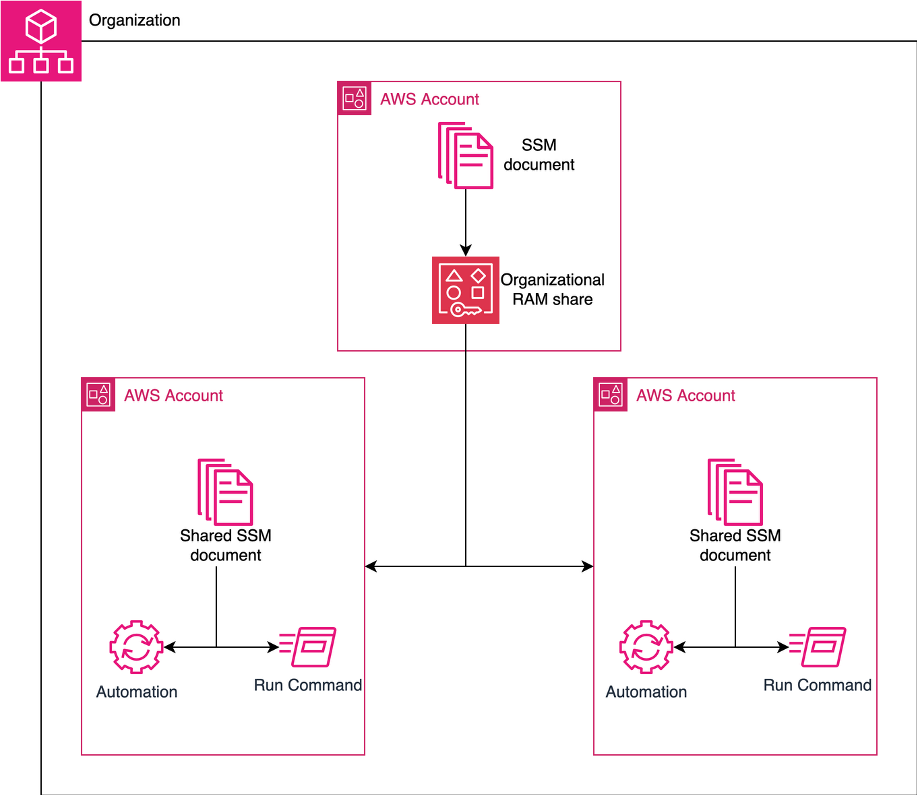
Figure 1. A document-owning account shares an SSM document to an organizational AWS RAM resource share, and member accounts across the organization run the shared document using Automation or Run Command.
- Create an AWS RAM resource share. In the account that owns your documents, create a resource share in the AWS RAM console or CLI. This account does not need to be your organization’s management account or a delegated administrator. It is simply the account that authors and owns the SSM documents. Enabling resource sharing with AWS Organizations, listed in Prerequisites, is the only step that requires the management account or a RAM delegated administrator.
- Add SSM documents. Add one or more SSM documents to the resource share.
- Attach a managed permission. AWS RAM attaches a managed permission that defines the actions consumer accounts can perform on the shared documents. By default it attaches AWSRAMPermissionSsmDocument. You can attach a different managed permission, or create a customer managed permission, if you want to narrow the allowed actions.
- Select principals. Choose your organization, specific OUs, or individual accounts to share the documents with.
- Access is granted. For accounts inside your organization, access is immediate. For accounts outside your organization, the consumer accepts an AWS RAM invitation first.
All versions of a shared document are available to the accounts you share with, so there is nothing extra to configure for versioning. By default, consumers run the document’s default version and automatically pick up changes when you publish a new default version. A consumer can also run a specific version by passing its version number at run time.
# Create a resource share
 aws ram create-resource-share \
   --name "central-ops-ssm-documents" \
   --principals "arn:aws:organizations::111111111111:ou/o-exampleorg/ou-ab12-workloads" \
   --resource-arns "arn:aws:ssm:us-east-1:222222222222:document/SSM-Automation-AD-Join" \
   --region us-east-1
If you omit –permission-arns, AWS RAM attaches the default AWSRAMPermissionSsmDocument managed permission for you. Once shared, member accounts can discover and run the document by its full ARN.
Walkthrough: share a central Active Directory domain-join runbook
Joining Windows EC2 instances to an Active Directory (AD) domain is a routine operational task. Two earlier posts, Simplifying Active Directory domain join with AWS Systems Manager and Event-driven Active Directory domain join with Amazon EventBridge, show how a single Automation runbook can join or unjoin instances manually, on a schedule, or in response to an event. This example takes that runbook one step further: instead of copying it into every account, a central team authors it once and shares it to member accounts through AWS RAM. Accounts that need to join nodes to a domain run the shared runbook by ARN, and there is one copy to maintain.
The scenario
A central identity team owns the AD domain-join runbook from the companion posts. The runbook asserts that the target instance is Windows, branches on a Join or Unjoin choice, runs the PowerShell that adds or removes the computer from the domain, tags the instance with the result, and reboots or stops it. The team previously shared this runbook with more than 300 account IDs and updated the list on every org change. With AWS RAM-based sharing, they share it to the Workloads OU once, and every current and future account in that OU can run it.
The runbook is published as a CloudFormation template in the ssm-automation-custom-ad-domain-join-unjoin repository. Deploy it in the central account to create the runbook (this example names it SSM-Automation-AD-Join) along with the Secrets Manager secret that holds the AD credentials.
The runbook reads AD credentials from Secrets Manager using the instance profile on the target instance. Each member account that runs the shared runbook needs an instance profile on its instances with access to a secret that holds the domain name, join account, and target OU. Sharing the runbook does not share those credentials, so plan how each account reaches its own AD secret.
Share the runbook via AWS RAM
Console:
- Open the AWS RAM console in the central account.
- Choose Create resource share.
- Enter a Name, for example
platform-ad-join-docs. - Under Resources, select SSM Documents as the resource type, then select your SSM-Automation-AD-Join runbook.
- Choose Next.
- Under Managed permissions, keep the default AWSRAMPermissionSsmDocument permission, or choose a different managed permission if you want to narrow the actions consumer accounts can perform.
- Choose Next.
- For Grant access to principals, perform the following steps:
- Under Principals, choose Allow sharing only within your organization.
- For Select principal type, select Organizational Unit (OU).
- Enter the OU ID to share the document with.
- Choose Add and choose Next.
- Review and choose Create resource share.
AWS CLI:
# Create a resource share
aws ram create-resource-share \
   --name "platform-ad-join-docs" \
   --resource-arns "arn:aws:ssm:us-east-1:222222222222:document/SSM-Automation-AD-Join" \
   --permission-arns "arn:aws:ram::aws:permission/AWSRAMPermissionSsmDocument" \
   --principals "arn:aws:organizations::111111111111:ou/o-exampleorg/ou-ab12-workloads" \
   --region us-east-1
The --permission-arns argument is optional. If you leave it out, AWS RAM attaches AWSRAMPermissionSsmDocument automatically.
CloudFormation example:
Resources:
   ADJoinDocumentShare:
     Type: AWS::RAM::ResourceShare
     Properties:
       Name: platform-ad-join-docs
       AllowExternalPrincipals: false
       Principals:
         - arn:aws:organizations::111111111111:ou/o-exampleorg/ou-ab12-workloads
       ResourceArns:
         - !Sub arn:aws:ssm:${AWS::Region}:${AWS::AccountId}:document/SSM-Automation-AD-Join
With CloudFormation, your resource shares are managed as infrastructure as code and version-controlled alongside your SSM documents.
Run the runbook from a member account
On demand: From any member account in the Workloads OU, join a test Windows instance to the domain by referencing the runbook’s full ARN and setting DomainJoinActivity to Join.
aws ssm start-automation-execution \
   --document-name "arn:aws:ssm:us-east-1:222222222222:document/SSM-Automation-AD-Join" \
   --parameters "InstanceId=i-0abc123def456,DomainJoinActivity=Join,AutomationAssumeRole=arn:aws:iam::333333333333:role/SSMAutomationRole" \
   --region us-east-1
The runbook confirms the instance is Windows, joins it to the domain, tags it with ADJoined=Join-complete, and reboots it.
Automate on launch: To join instances as they launch instead of running the command by hand, pair the shared runbook with the event-driven pattern in Event-driven Active Directory domain join with Amazon EventBridge. A member account creates an EventBridge rule that starts the shared runbook by ARN when a new instance reaches the running state.
Best practices
For guidance on sharing SSM documents at scale, including versioning, governance guardrails, and migration, see Best practices for shared SSM documents in the AWS Systems Manager User Guide.
Migrating from legacy sharing
If you already share documents with account-ID lists through ModifyDocumentPermission, you do not have to start over. The Systems Manager console provides a guided migration that converts your existing shared documents to AWS RAM resource shares without disrupting access for accounts that already consume them. After migration, sharing stays in sync with your organization, and you can retire the scripts that maintained account-ID lists. For the step-by-step process, see Migrate an existing shared document to AWS RAM in the AWS Systems Manager User Guide.
Cleanup
To stop sharing the runbook, remove it from the resource share:
aws ram disassociate-resource-share \
   --resource-share-arn "arn:aws:ram:us-east-1:222222222222:resource-share/abc123" \
   --resource-arns "arn:aws:ssm:us-east-1:222222222222:document/SSM-Automation-AD-Join"
After you remove the runbook from the resource share, member accounts can no longer start executions that reference its ARN. Any EventBridge rule or scheduled task in a consumer account that targets the shared runbook fails on its next run.
If you deployed the runbook from the sample CloudFormation template, delete that stack in the central account to remove the runbook, the Secrets Manager secret, and the IAM resources it created. Remove the resource share first, so the shared runbook is no longer referenced when the stack deletes it. In the CloudFormation console, choose the stack and choose Delete, or run the following, replacing the stack name with the one you used:
aws cloudformation delete-stack \
   --stack-name SSM-Automation-Demo \
   --region us-east-1
Conclusion
Sharing SSM documents through AWS RAM removes the operational overhead of managing per-account sharing lists. The pattern applies to any operational use case, including bootstrapping, patching, incident response, and configuration enforcement: author once in a central account, share to your organization or OUs through AWS RAM, and let member accounts run the document by ARN.
Read alongside Simplifying Active Directory domain join with AWS Systems Manager and Event-driven Active Directory domain join with Amazon EventBridge, this post completes the picture: author the domain-join runbook once, share it across your organization with AWS RAM, and run it from any member account by ARN.
Try it yourself: Pick a custom SSM document or Automation runbook you already use in your environment, share it to a sandbox OU through AWS RAM, and run it from a member account by its full ARN. Confirm the member account can run the document without a copy being maintained in that account, then extend the pattern to the rest of the documents your teams share today.