AWS Big Data Blog
Uplevel your data architecture with real-time streaming using Amazon Data Firehose and Snowflake
September 2026: This post was reviewed and updated for accuracy.
Timely insights and decisions increasingly depend on streaming data. Streaming data refers to data that is continuously generated from a variety of sources. The sources of this data, such as clickstream events, change data capture (CDC), application and service logs, and Internet of Things (IoT) data streams are proliferating. Snowflake offers two options to bring streaming data into its platform: Snowpipe and Snowflake Snowpipe Streaming. Snowpipe is suitable for file ingestion (batching) use cases, such as loading large files from Amazon Simple Storage Service (Amazon S3) to Snowflake. Snowpipe Streaming, a newer feature released in March 2023, is suitable for rowset ingestion (streaming) use cases, such as loading a continuous stream of data from Amazon Kinesis Data Streams or Amazon Managed Streaming for Apache Kafka (Amazon MSK).
Before Snowpipe Streaming, AWS customers used Snowpipe for both use cases: file ingestion and rowset ingestion. First, you ingested streaming data to Kinesis Data Streams or Amazon MSK, then used Amazon Data Firehose to aggregate and write streams to Amazon S3, followed by using Snowpipe to load the data into Snowflake. However, this multi-step process can result in delays of up to an hour before data is available for analysis in Snowflake. Moreover, it’s expensive, especially when you have small files that Snowpipe has to upload to the Snowflake customer cluster.
To solve this issue, Amazon Data Firehose now integrates with Snowpipe Streaming, so you can capture, transform, and deliver data streams from Kinesis Data Streams, Amazon MSK, and Firehose Direct PUT to Snowflake in seconds at a low cost. With a few clicks on the Amazon Data Firehose console, you can set up a Firehose stream to deliver data to Snowflake. There are no commitments or upfront investments to use Amazon Data Firehose, and you only pay for the amount of data streamed.
Some key features of Amazon Data Firehose include:
-
Fully managed serverless service – You don’t need to manage resources, and Amazon Data Firehose automatically scales to match the throughput of your data source without ongoing administration.
-
Straightforward to use – You don’t need to write applications.
-
Real-time data delivery – You can get data to your destinations quickly and efficiently in seconds.
-
Integration with over 20 AWS services – Amazon Data Firehose integrates with many AWS services, such as Kinesis Data Streams, Amazon MSK, Amazon Virtual Private Cloud (Amazon VPC) Flow Logs, AWS WAF logs, Amazon CloudWatch Logs, Amazon EventBridge, AWS IoT Core, and more.
-
Pay-as-you-go model – You only pay for the data volume that Amazon Data Firehose processes.
-
Connectivity – Amazon Data Firehose can connect to public or private subnets in your VPC.
This post explains how you can bring streaming data from AWS into Snowflake within seconds to perform advanced analytics. We explore common architectures and illustrate how to set up a low-code, serverless, cost-effective solution for low-latency data streaming.
Overview of solution
The following are the steps to implement the solution to stream data from AWS to Snowflake:
-
Create a Snowflake database, schema, and table.
-
Create a Kinesis data stream.
-
Create a Firehose delivery stream with Kinesis Data Streams as the source and Snowflake as its destination using a secure private link.
-
To test the setup, generate sample stream data from the Amazon Kinesis Data Generator (KDG) with the Firehose delivery stream as the destination.
-
Query the Snowflake table to validate the data loaded into Snowflake.
The solution is depicted in the following architecture diagram.
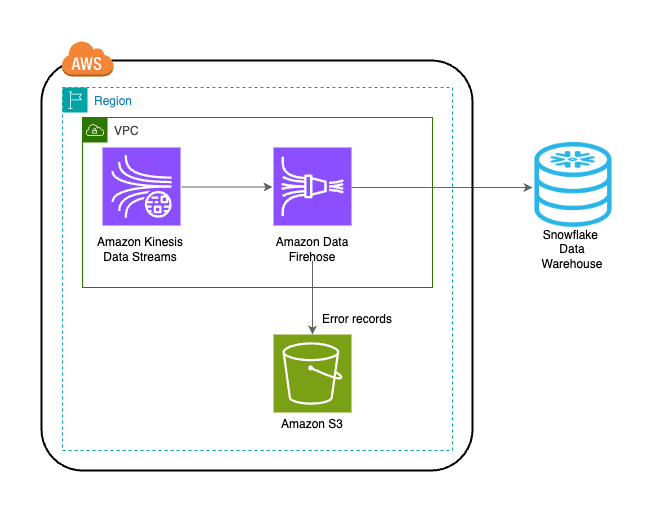
Figure 1: Solution architecture for streaming data from AWS into Snowflake
Prerequisites
You should have the following prerequisites:
-
An AWS account and access to the following AWS services:
-
Kinesis Data Streams.
-
Amazon S3.
-
Amazon Data Firehose.
-
Familiarity with the AWS Management Console.
-
A key pair generated and your user configured to connect securely to Snowflake. Note that Snowflake added support for OAuth for many use cases. For instructions on setting up key pair, refer to the following:
-
An S3 bucket for error logging.
-
The KDG set up. For instructions, refer to Test Your Streaming Data Solution with the New Amazon Kinesis Data Generator.
Create a Snowflake database, schema, and table
Complete the following steps to set up your data in Snowflake:
-
Log in to your Snowflake account and create the database:
-
Create a schema in the new database:
-
Create a table in the new schema:
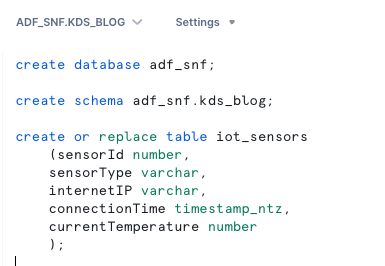
Figure 2: The iot_sensors table created in Snowflake
Create a Kinesis data stream
Complete the following steps to create your data stream:
-
On the Kinesis Data Streams console, choose Data streams in the navigation pane.
-
Choose Create data stream.

Figure 3: Choosing Data streams in the Kinesis Data Streams console
-
For Data stream name, enter a name (for example,
KDS-Demo-Stream). -
Leave the remaining settings as default.
-
Choose Create data stream.
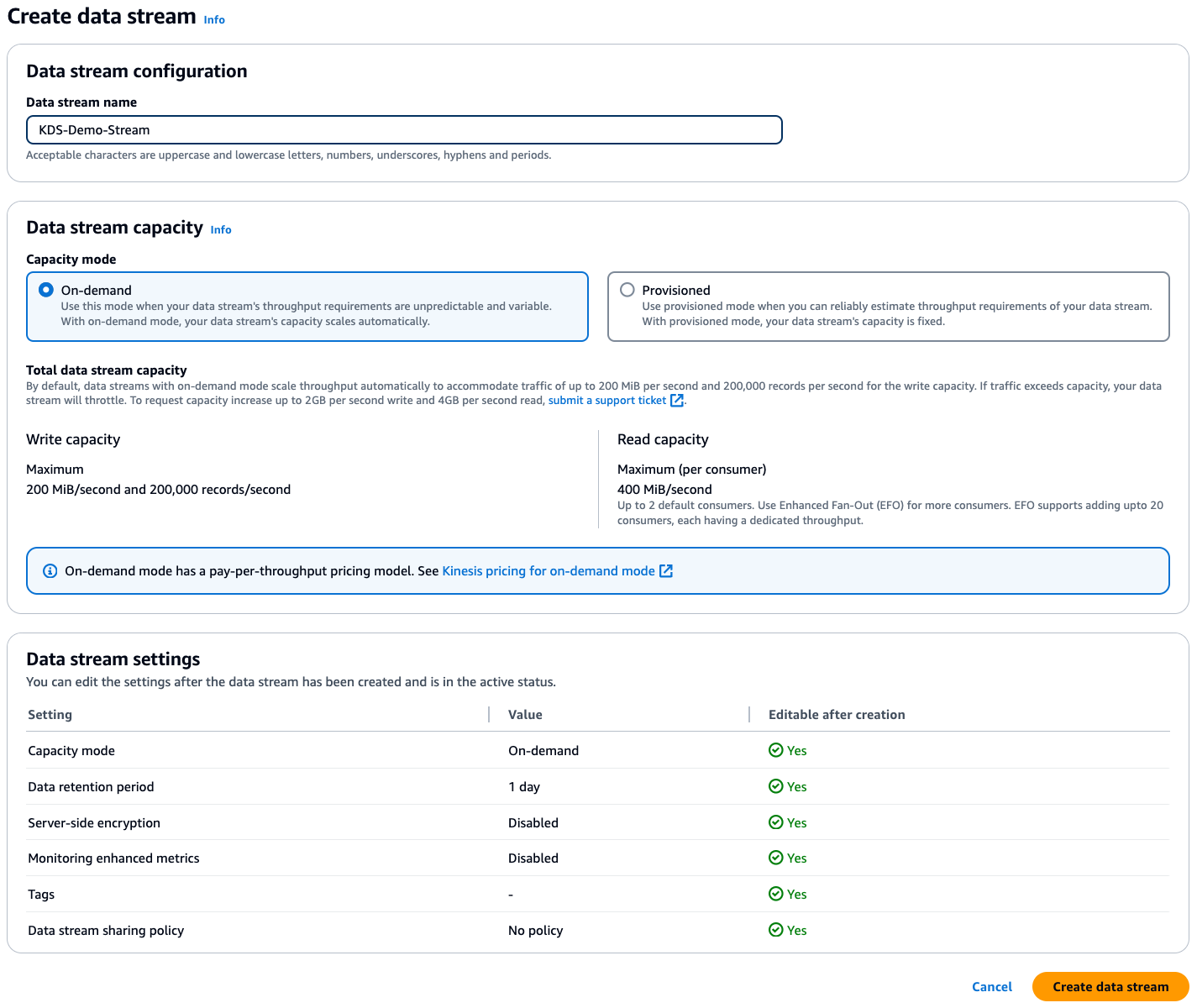
Figure 4: The new Kinesis data stream in the Active status
Create a Firehose delivery stream
Complete the following steps to create a Firehose delivery stream with Kinesis Data Streams as the source and Snowflake as its destination:
-
On the Amazon Data Firehose console, choose Create Firehose stream.
-
For Source, choose Amazon Kinesis Data Streams.
-
For Destination, choose Snowflake.
-
For Kinesis data stream, browse to the data stream you created earlier.
-
For Firehose stream name, leave the default generated name or enter a name of your preference.
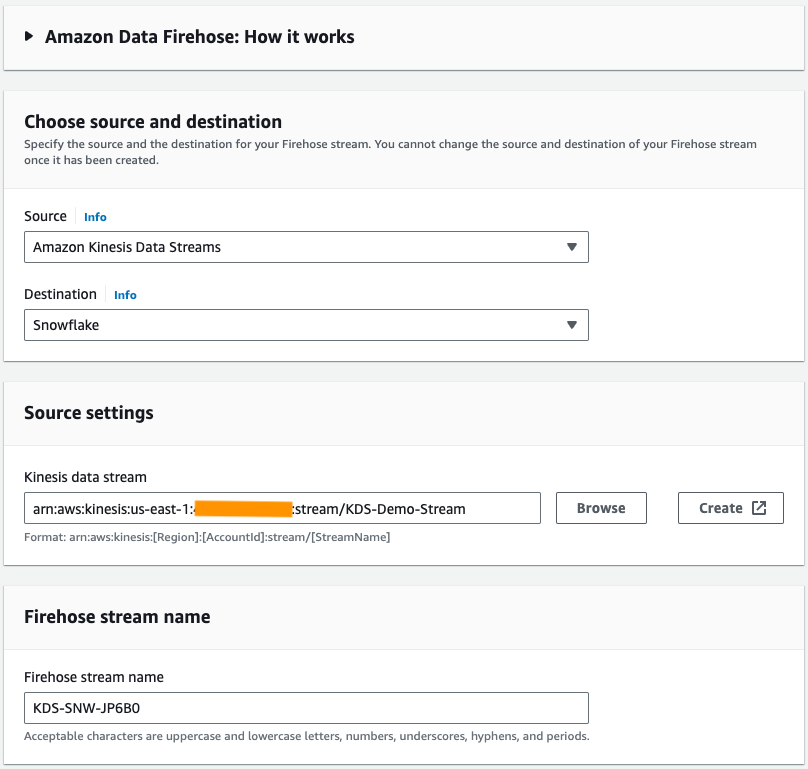
Figure 5: Configuring the Firehose stream source and destination
-
Under Connection settings, provide the following information to connect Amazon Data Firehose to Snowflake using your chosen authentication method (OAuth or key pair):
-
For Key Pair:
-
For Snowflake account URL, enter your Snowflake account URL.
-
For User, enter the user name generated in the prerequisites.
-
For Private key, enter the private key generated in the prerequisites. Make sure the private key is in PKCS8 format. Do not include the PEM
header-BEGINprefix andfooter-ENDsuffix as part of the private key. If the key is split across multiple lines, remove the line breaks. -
For Role, select Use custom Snowflake role and enter the IAM role that has access to write to the database table.
-
-
You can connect to Snowflake using public or private connectivity. If you don’t provide a VPC endpoint, the default connectivity mode is public. To allow list Firehose IPs in your Snowflake network policy, refer to Choose Snowflake for Your Destination. If you’re using a private link URL, provide the VPCE ID using SYSTEM$GET_PRIVATELINK_CONFIG:
This function returns a JSON representation of the Snowflake account information necessary to facilitate the self-service configuration of private connectivity to the Snowflake service, as shown in the following screenshot.
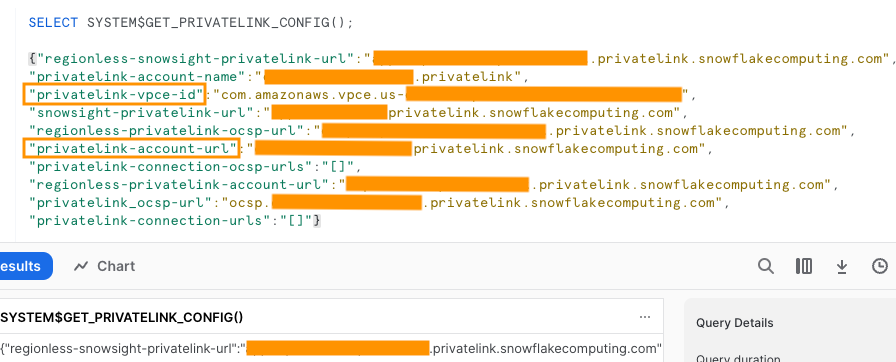
Figure 6: Output of the Snowflake private link configuration function
- For this post, we’re using a private link, so for VPCE ID, enter the VPCE ID.
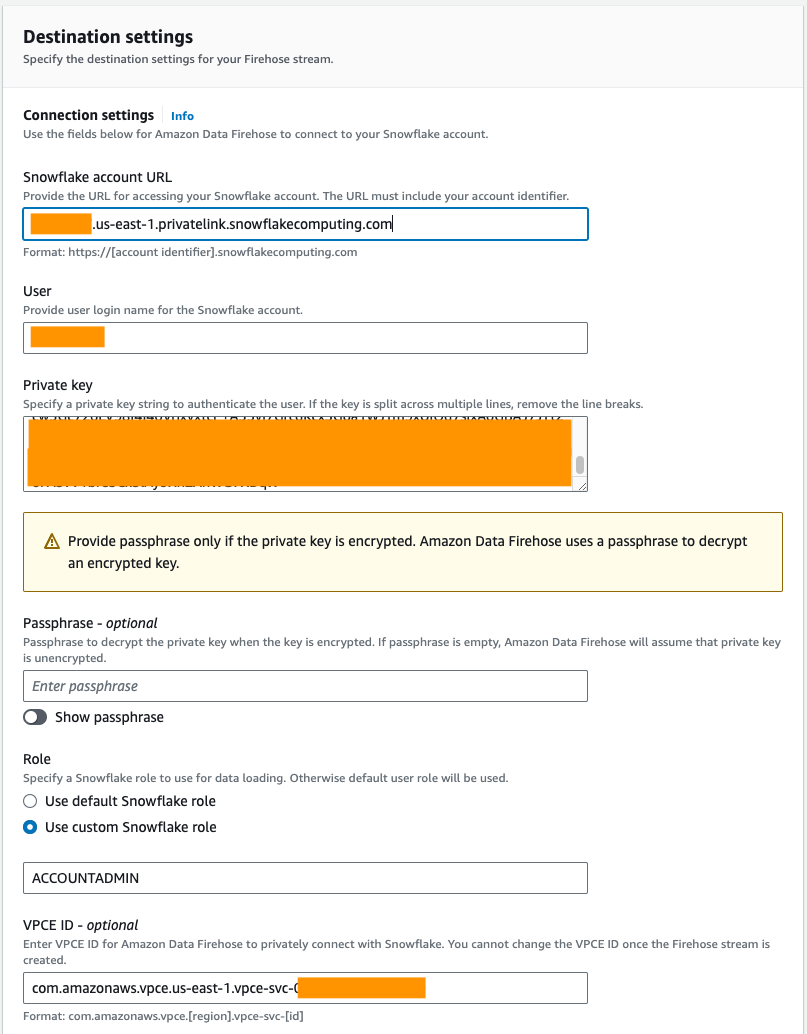
Figure 7: Entering the VPCE ID for the private link connection
-
Under Database configuration settings, enter your Snowflake database, schema, and table names.
-
In the Backup settings section, for S3 backup bucket, enter the bucket you created as part of the prerequisites.
-
Choose Create Firehose stream.
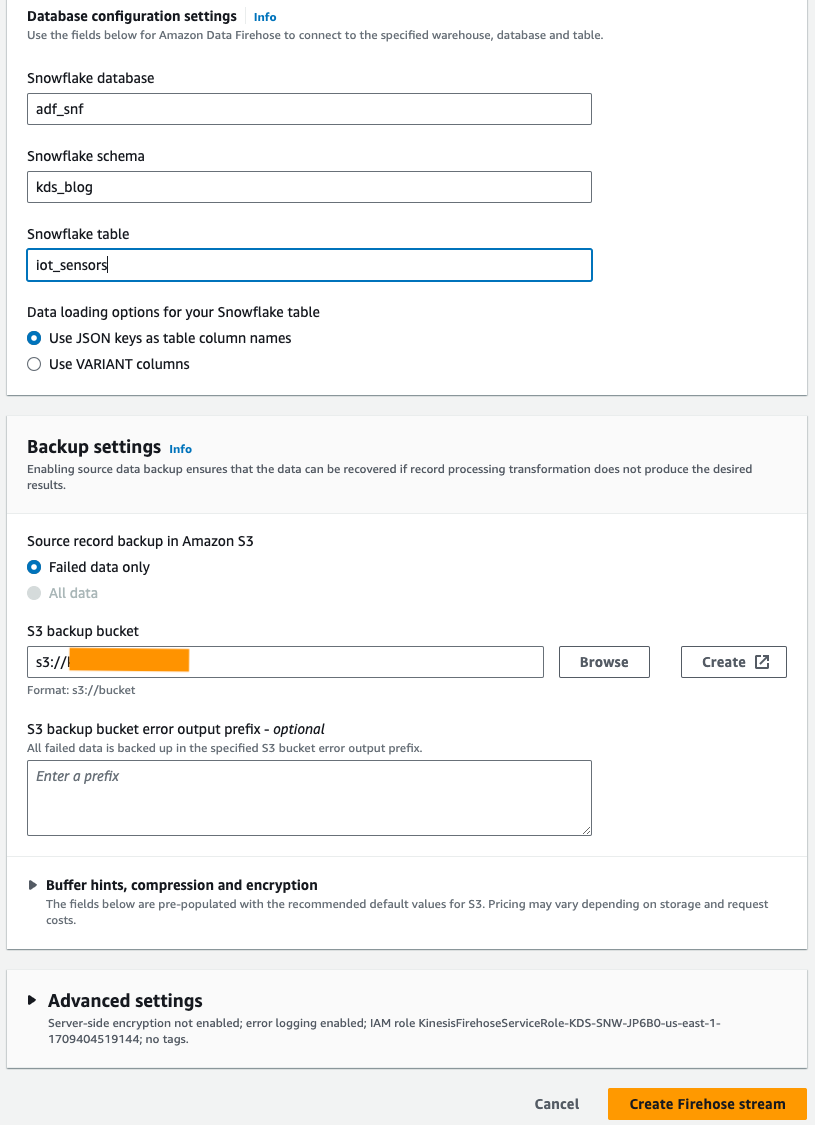
Figure 8: Creating the Firehose stream
Alternatively, you can use an AWS CloudFormation template to create the Firehose delivery stream with Snowflake as the destination rather than using the Amazon Data Firehose console.
To use the CloudFormation stack, choose

Generate sample stream data
Generate sample stream data from the KDG with the Kinesis data stream you created:
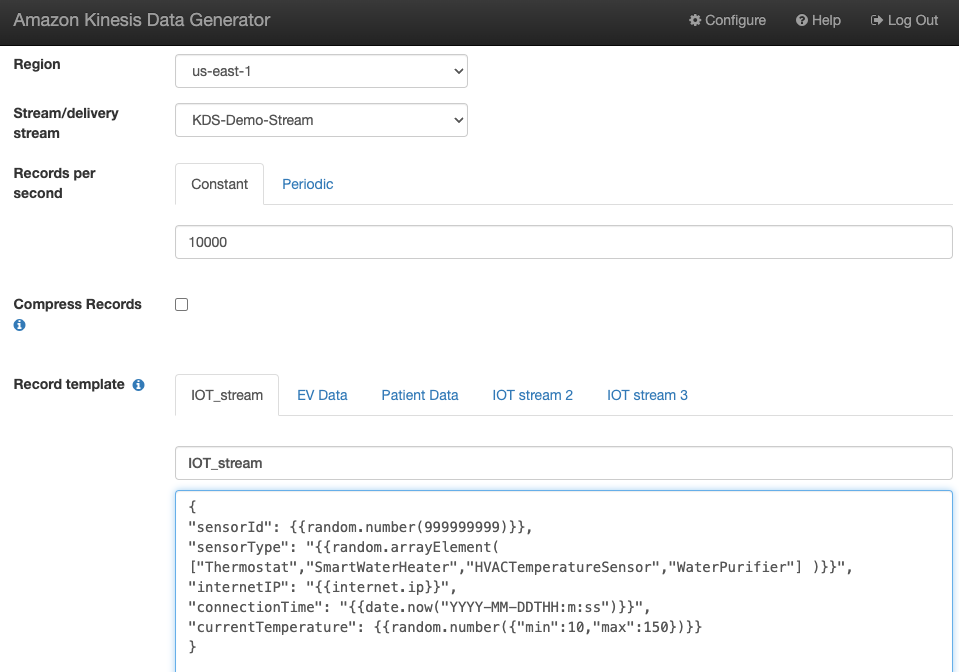
Figure 9: Sample record template in the Amazon Kinesis Data Generator
Query the Snowflake table
Query the Snowflake table:
You can confirm that the data generated by the KDG that was sent to Kinesis Data Streams is loaded into the Snowflake table through Amazon Data Firehose.
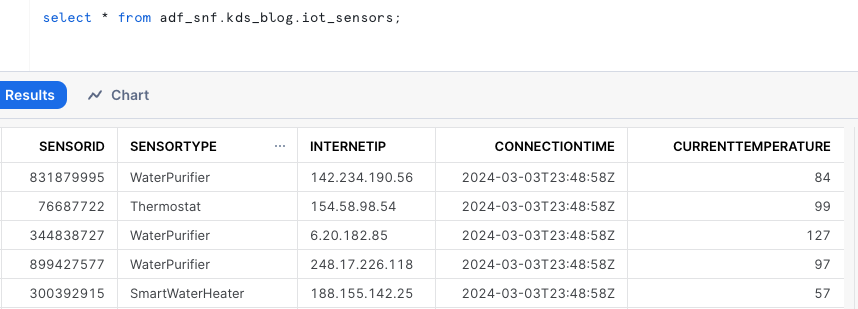
Figure 10: IoT sensor data loaded into the Snowflake table
Troubleshooting
If data is not loaded into Kinesis Data Streams after the KDG sends data to the Firehose delivery stream, refresh and make sure you are logged in to the KDG.
If you made any changes to the Snowflake destination table definition, recreate the Firehose delivery stream.
Clean up
To avoid incurring future charges, delete the resources you created as part of this exercise if you are not planning to use them further.
Conclusion
Amazon Data Firehose provides a straightforward way to deliver data to Snowpipe Streaming, so you can save costs and reduce latency to seconds. To try Amazon Data Firehose with Snowflake, refer to the Amazon Data Firehose with Snowflake as destination lab.